

-
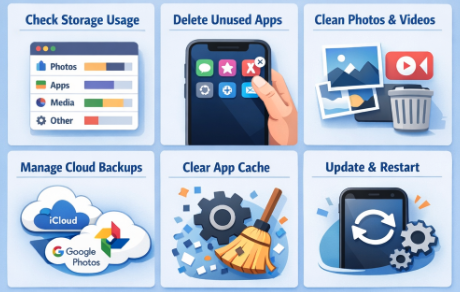
Check what uses your storage
Open your storage settings first.
On iPhone: Settings. General. iPhone Storage.
On Android: Settings. Storage.
You will see a list of apps and file types. Photos, videos, and social apps usually take the most space. This view shows where to focus instead of guessing.
-
Delete unused apps
If you have not opened an app in months, remove it. Many apps store large data files even when you do not use them.
On iPhone, you can turn on Offload Unused Apps. This removes the app but keeps its data.
On Android, uninstall apps fully and reinstall later if needed.
Games, shopping apps, and old travel apps are common storage hogs.
-
Clean photos and videos
Photos and videos are the top storage problem for most users.
Delete:
• Blurry photos
• Screenshots you no longer need
• Short videos sent through messaging apps
• Duplicate photos
On iPhone, check Albums. Duplicates.
On Android, use Files or Gallery tools to find large videos.
After deleting, empty the Recently Deleted folder. Storage does not free up until you do.
-
Manage cloud backups
Cloud storage helps, but it can also fill up your phone if not set correctly.
On iPhone:
Use iCloud Photos with Optimize iPhone Storage. Full files stay in the cloud. Smaller versions stay on your phone.
On Android:
Use Google Photos backup and remove local copies after upload.
Make sure backups finish before deleting local files.
-
Clear app cache and downloads
Apps like WhatsApp, Instagram, TikTok, Chrome, and YouTube store cached files.
On Android:
Settings. Apps. Select app. Storage. Clear Cache.
On iPhone:
There is no cache button. Delete and reinstall heavy apps to clear stored data.
Also check your Downloads folder. Old PDFs, images, and files add up fast.
-
Update your system and restart
System updates include storage fixes and better file handling.
Restarting clears temporary files and background processes.
If your phone still shows low storage after cleaning, a restart helps refresh the system and show the correct space.
When to get help
If storage fills up again within days, there may be a hidden issue. Corrupted backups, stuck sync files, or failing storage chips cause this.
A repair shop can check storage health, clean system files, and help you decide if repair or upgrade makes sense.
Free space means faster performance, smoother updates, and longer phone life. Start with these steps before spending money on a new device.